
Work Smarter, Not Harder: How Microsoft 365 Copilot Just Changed the Productivity Game

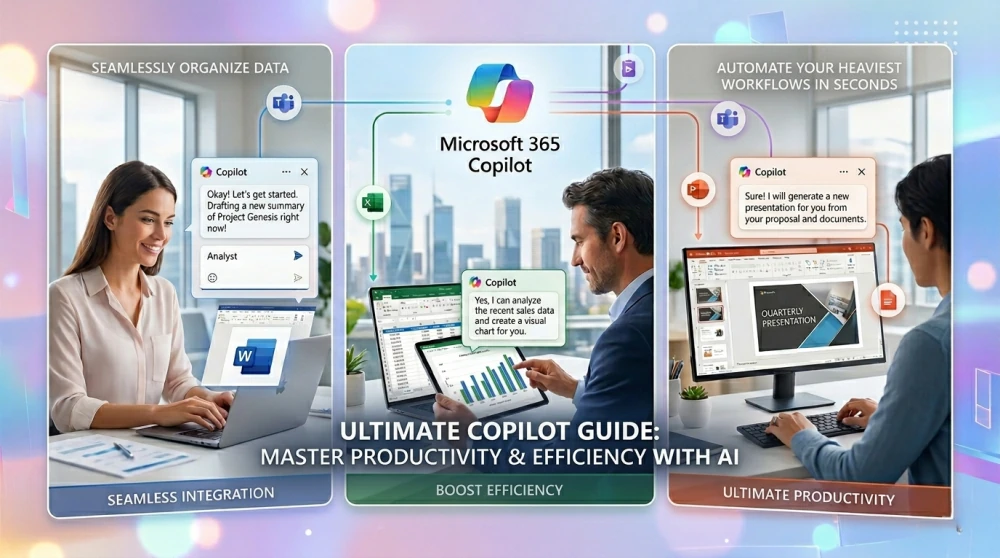
Let’s be completely honest: nobody goes to work excited to format messy spreadsheets, dig through endless email threads for a single data point, or stare at a blank document trying to write a project proposal.
Enter Microsoft 365 Copilot. It isn’t just another AI chatbot pinned to your taskbar; it is an integrated engine built directly into the apps you use every single day—Word, Excel, PowerPoint, Outlook, and Teams. It acts as a highly capable assistant that already understands your context, your files, and your workflow.
Here is a quick look at how easily Copilot tackles your heaviest daily tasks and multiplies your productivity.
1. Document Creation & Editing (Word)
Starting from scratch is always the hardest part of writing. With Copilot in Word, you can skip the writer’s block entirely.
How easy is it? Open a blank document, click the Copilot icon, and type: “Draft a 3-page project proposal based on [Product Spec Sheet.docx] and format it with clear headings.”
The Result: It pulls the context directly from your existing secure files, writes a professional draft in seconds, and lets you instantly adjust the tone to be more casual, formal, or concise.
2. Painless Data Analysis (Excel)
You don’t need to be a macro wizard or remember complex nested formulas to get deep insights out of your data anymore.
How easy is it? Highlight your data table, open the Copilot pane, and ask: “Analyze this quarter’s sales trends and highlight the top 3 underperforming regions.”
The Result: Copilot will color-code the trends, generate a native pivot table, and even write the exact formulas required to calculate your growth metrics automatically.
3. Turning Ideas into Presentations (PowerPoint)
Creating slides usually takes hours of tweaking layouts and resizing text boxes. Copilot treats your documents as instant outlines.
How easy is it? Open PowerPoint and tell Copilot: “Create a 10-slide presentation based on the quarterly report document we finalized yesterday.”
The Result: It automatically builds a beautifully designed slide deck, matches it to your corporate branding, inserts relevant imagery, and even writes speaker notes for you.
4. Taming the Inbox and Meetings (Outlook & Teams)
If you step away for a day, catching up can feel impossible. Copilot acts as your ultimate catch-up tool.
In Outlook: Use Coaching by Copilot to review a sensitive email draft for clarity and tone, or ask it to summarize a massive, 20-message email thread down to three bullet points.
In Teams: Joined a meeting 15 minutes late? Ask Copilot: “What did I miss so far, and was my name mentioned?” It reads the live transcript to give you a private, instant update.
Ready to See It in Action?
Microsoft has created excellent step-by-step video tutorials to show you exactly how this looks on your screen. Check out their official introductory course below to see how seamlessly it integrates into your day-to-day routine:
Official Video Link: Introduction to Microsoft 365 Copilot | MS-4018 | Episode 1
The Bottom Line
The real magic of Copilot isn’t just that it’s smart; it’s that it works safely within your company’s secure cloud ecosystem. It doesn’t require complex coding or hours of training to learn—if you can type a normal sentence to a coworker, you already know how to use it.
RELATED PRODUCTS





































 Omada
Omada